Blender add-on · Blender 4.2 and newer · Windows, Apple Silicon Mac, Linux

Fix overhangs.
Don't just find them.

OverHeal rebuilds your model as one watertight, print-ready mesh. It adds material only under overhangs too steep to print, snaps everything else back onto the surface you sculpted, and carries your full-color texture onto the new mesh.

Includes two free add-ons: Even Mesh and Export This Object.

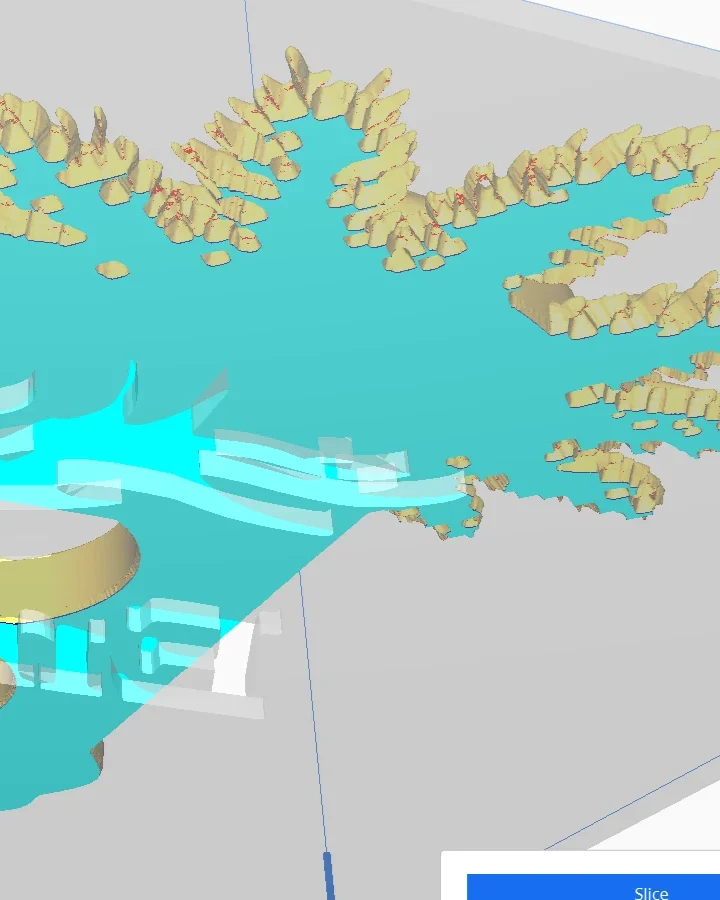
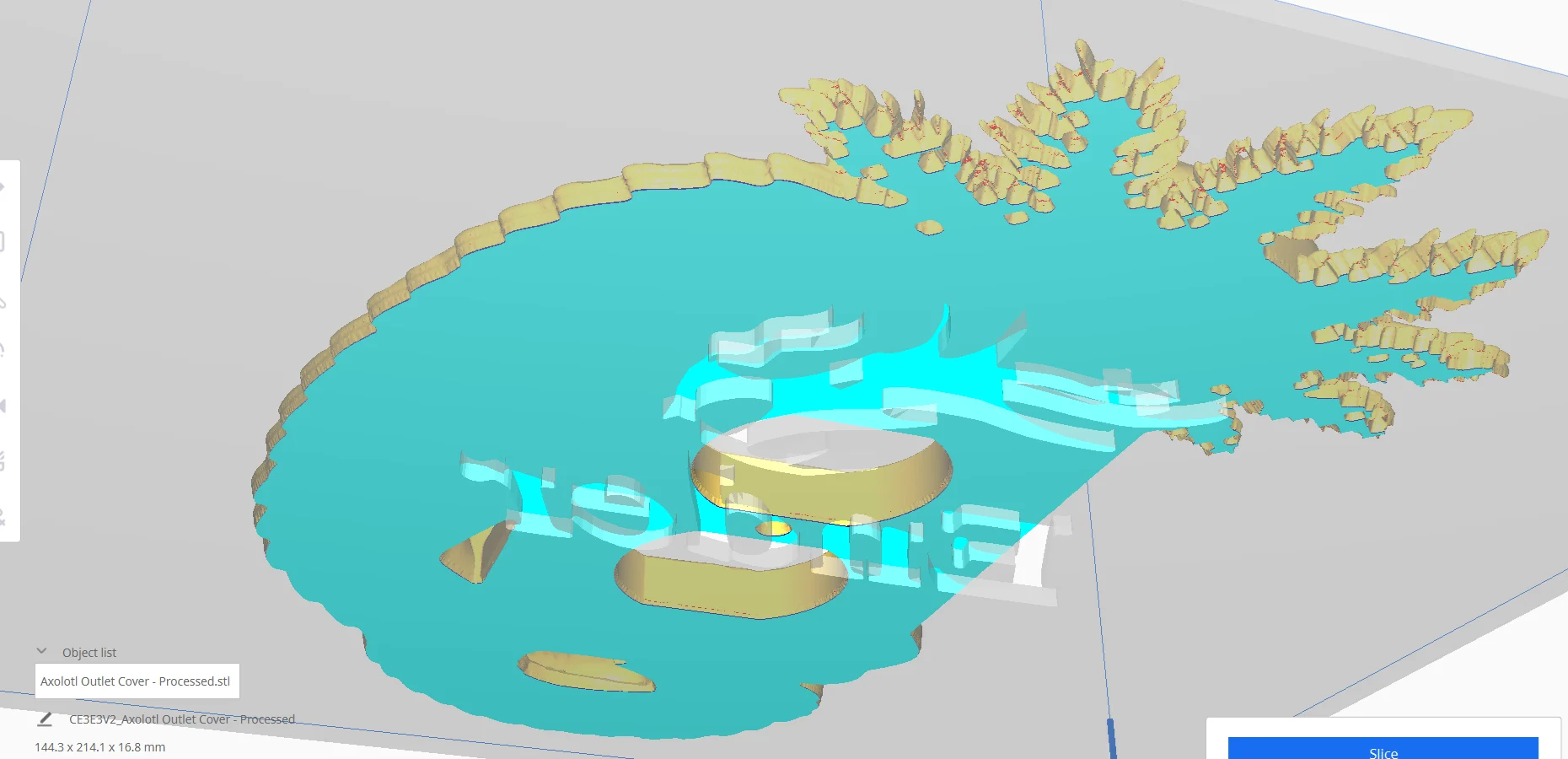
The OverHealed axolotl outlet cover in Cura: the gill fronds no longer show overhang warnings
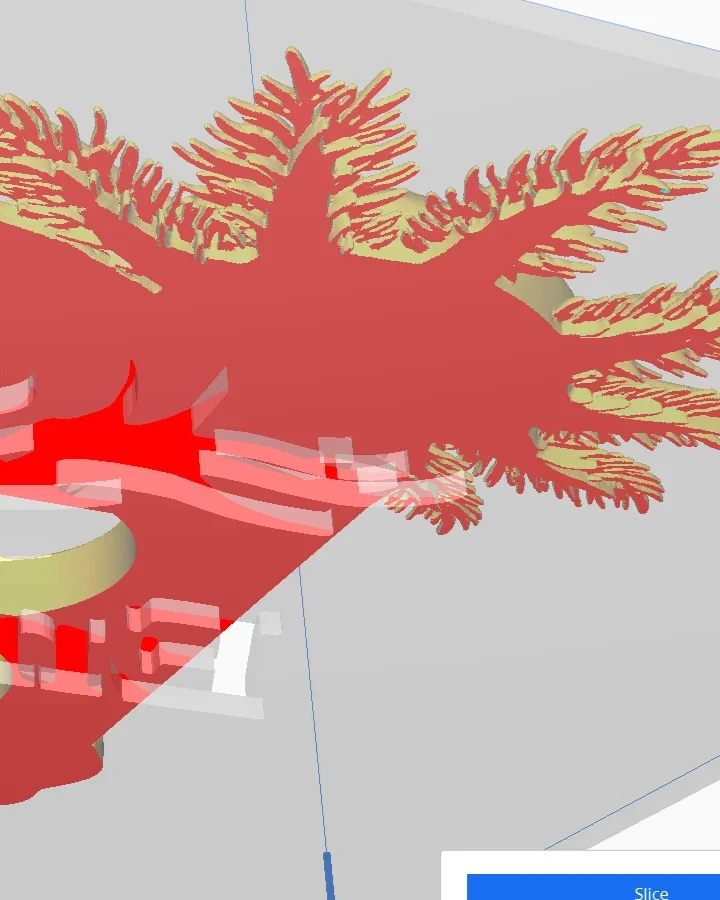
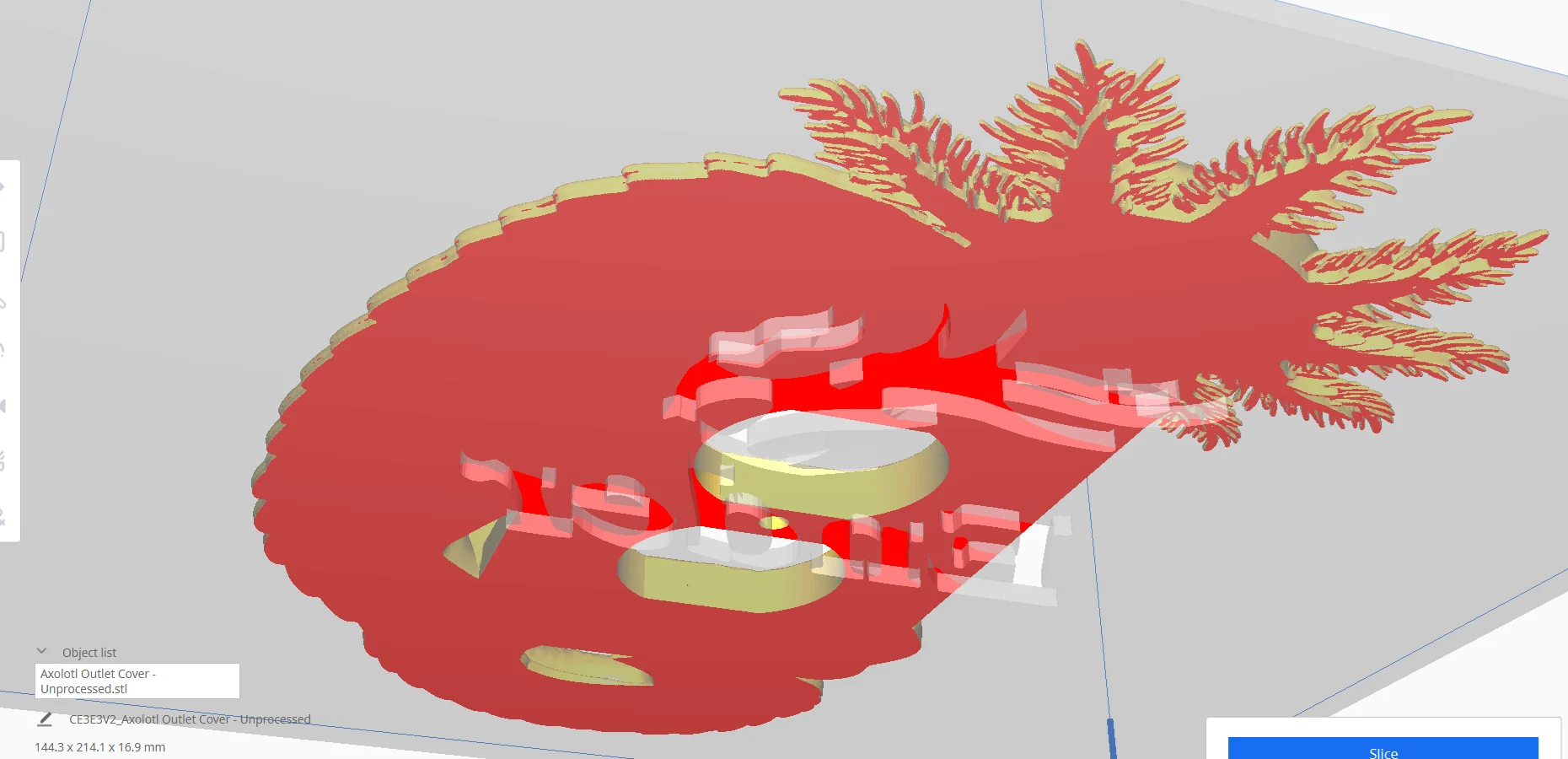
The unprocessed axolotl outlet cover in Cura: the whole underside of the gill fronds is flagged red
Unprocessed OverHealed
A real run: the axolotl outlet cover in UltiMaker Cura, same view, supports off. Red is Cura's overhang warning. More from real projects
overhang area past 45°
−99%4,752 → 59 mm², measured the way 3D Print Toolbox measures it
non-manifold edges
0plus 0 open edges, flipped neighbors, pinched verts, zero-area faces
UV islands carried over
1,401texture moved onto the healed mesh; your original object is never changed
material added
+4.5%volume, placed only where the printer needs it

Test model: an octopus figurine made in Blender for this page, 125 × 148 × 83 mm, 47,833 faces, painted 2K texture. Curled tentacles and suckers on their undersides overhang the bed in dozens of places, like most figurines. Full evaluation at the default 35° wrap angle.

The problem

Supports cost you the surface you spent hours on.

Sculpted and scanned models are full of undercuts: curled tentacles, chins, brims, raised arms, gill fronds, fur clumps. Slicers answer with supports, which leave scars exactly where the detail is, take longer to print and longer to clean up, and are a mess on full-color prints.

The official 3D Print Toolbox is an excellent inspector. Its Overhang check tells you where the trouble is, but the fix is still yours: hand-sculpt fill, rebuild topology, re-UV, re-texture, and hope the mesh is still manifold.

OverHeal does that fix in one run.

Real projects

Two sculpted outlet covers, start to slicer

Decorative relief covers are a worst case for printing: gills, fur, ears and paws all hang over the bed. These are the developer's own runs, unretouched.

Example 1

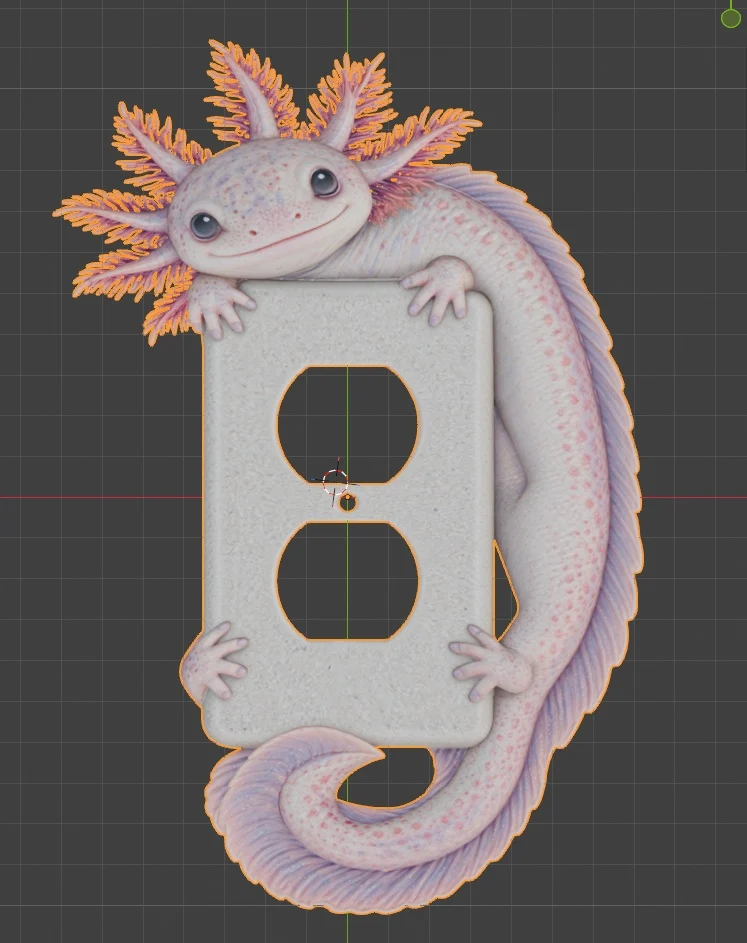
Axolotl outlet cover

144.3 × 214.1 × 16.9 mm · full-color texture

Processed axolotl cover in Cura with almost no red overhang areas
Unprocessed axolotl cover in Cura with the underside of the gills and body flagged red
Unprocessed OverHealed
UltiMaker Cura, same view, supports off. Red is Cura's overhang warning. Drag to compare.
Full-color axolotl outlet cover seen from the top in Blender
The cover in Blender, full-color texture.
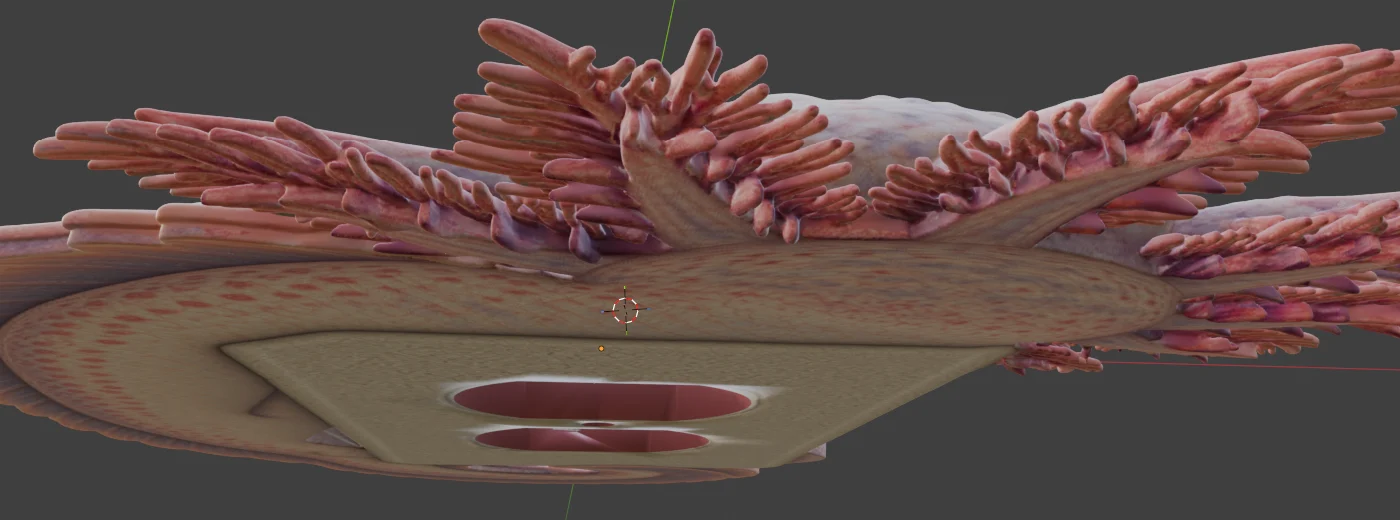
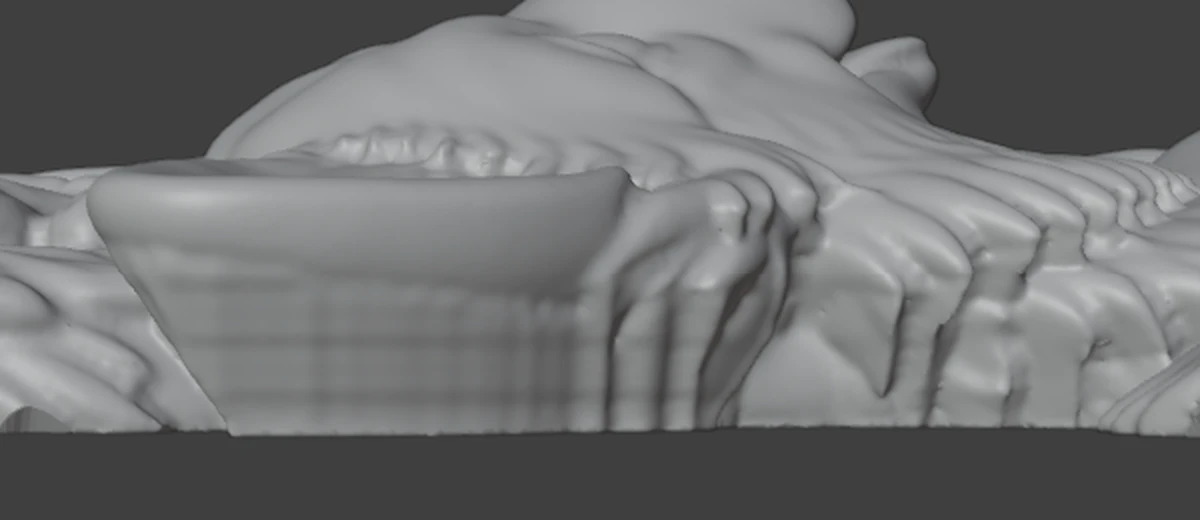
Before Underside of the original axolotl cover: gill fronds and body float above the bed
Before: the gill fronds and the body float over the bed with nothing beneath them.
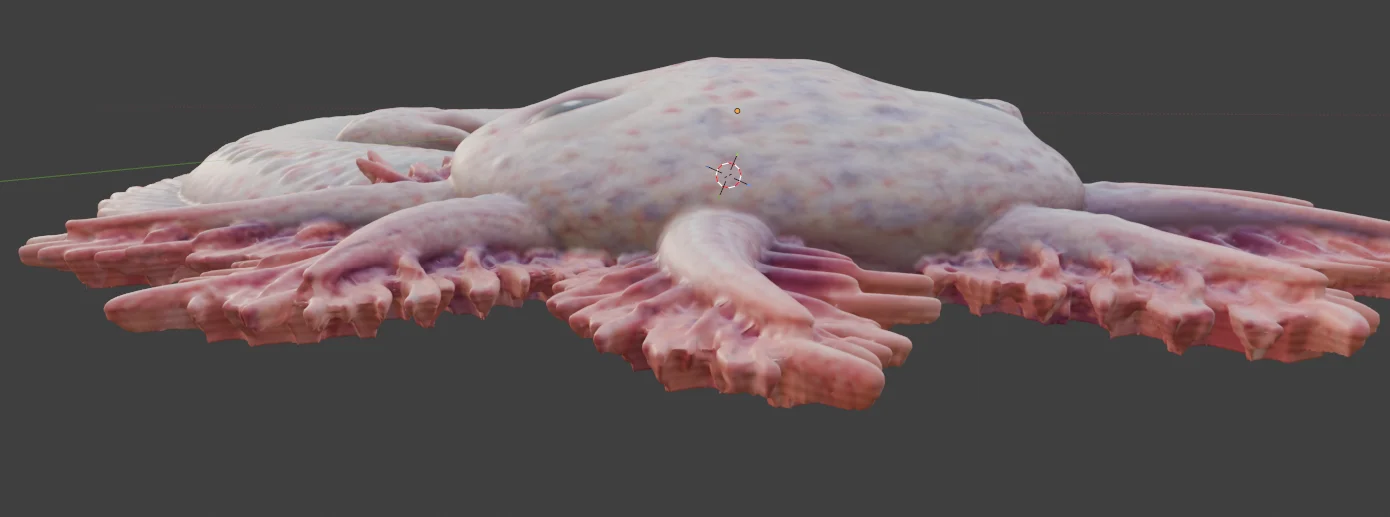
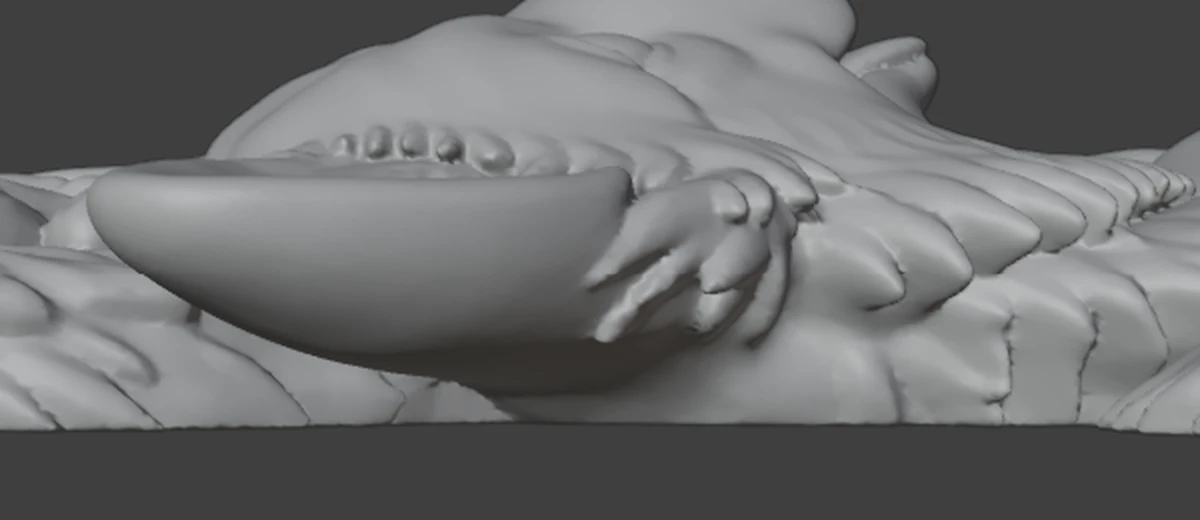
After The same cover after OverHeal: gills and body taper down to the bed, texture intact
After: every frond tapers down to the bed, and the texture comes along.
Example 2

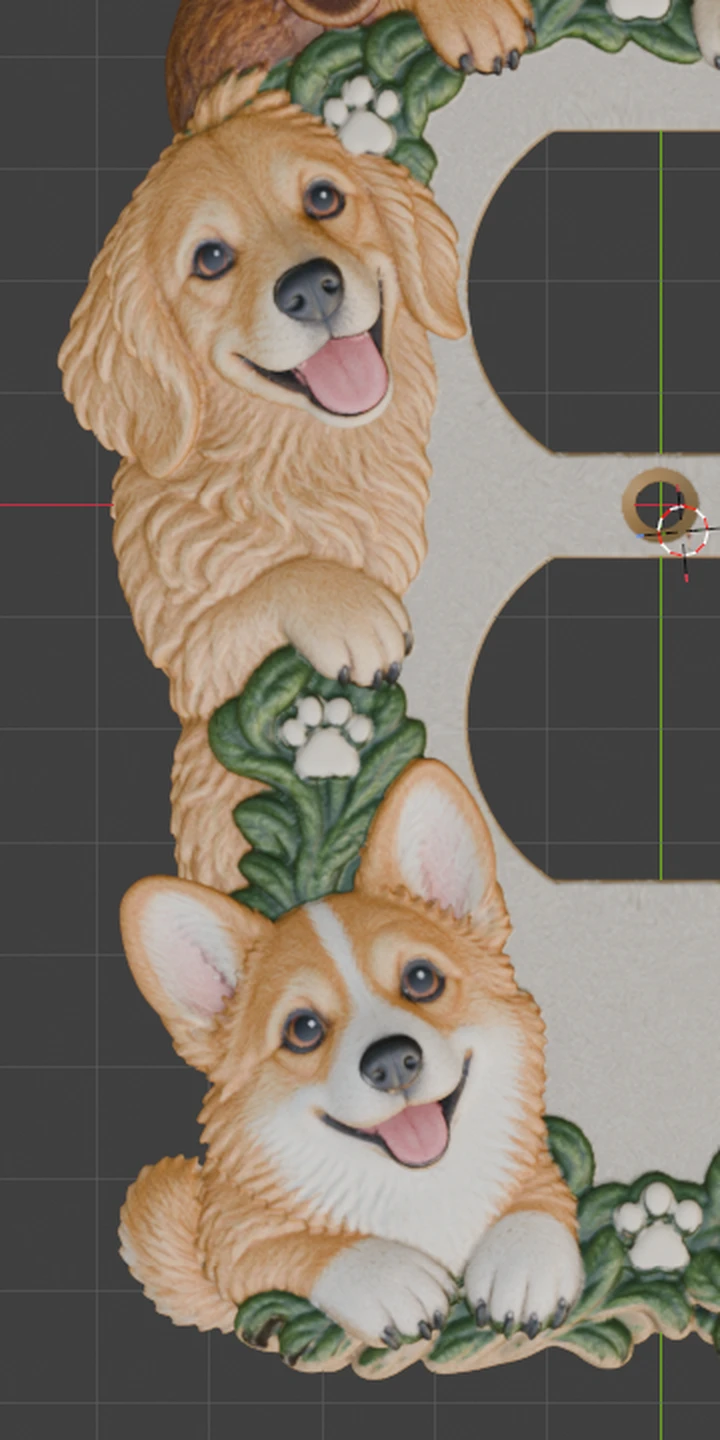
Six-dog outlet cover

Before and after · fur, ears and open mouths

The six-dog cover after OverHeal from the top, colors intact
Original six-dog outlet cover from the top, full color
Before After
Top view: fur, paws and colors look the same after OverHeal. Drag to compare.
Side view after OverHeal: fill slopes from the fur and ears down to the bed
Side view of the original six-dog cover: fur and ears overhang the bed
Before After
Side view: the outlet rim and the paw toes hang over the bed. After, fill runs straight down from them to the bed.
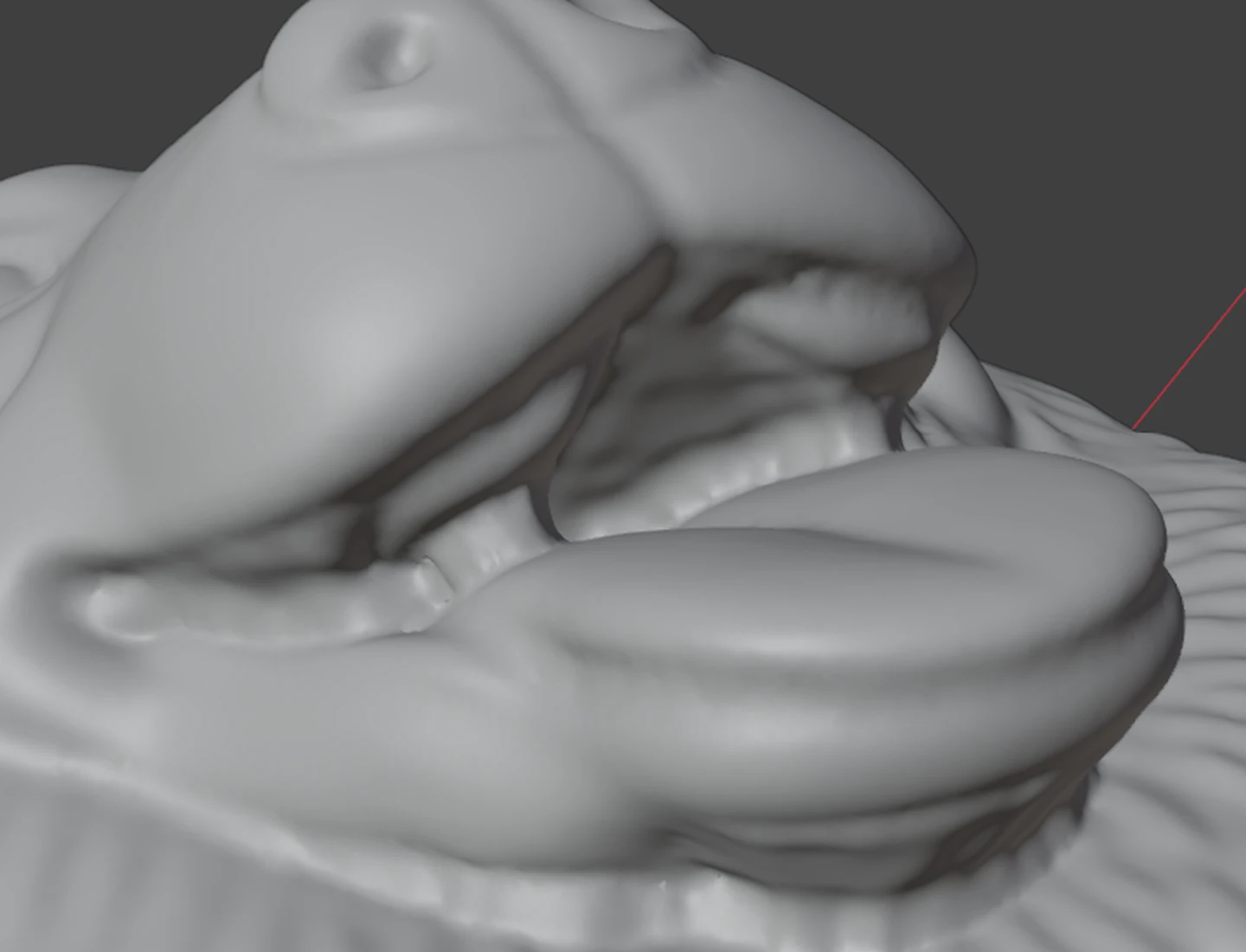
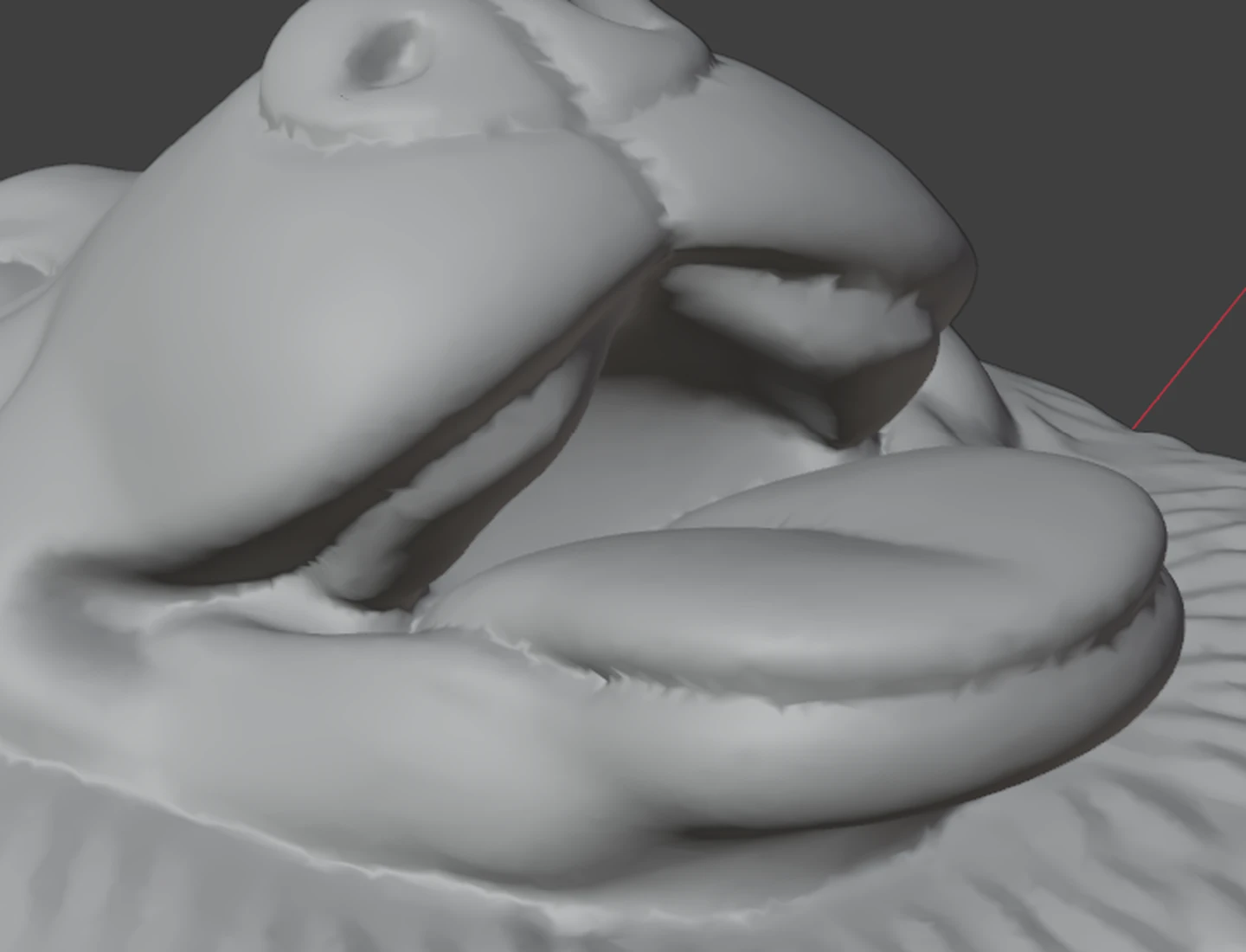
The same open mouth after OverHeal
Close-up of a dog's open mouth on the original mesh
Before After
Mouth: ragged, cracked lip edges become clean solid surfaces, and the mouth stays open.
The same opening after OverHeal with Edge Trim bevels on the bed edge and hole rims
Cutaway of an outlet opening on the original mesh with sharp edges
Before After
Openings: Edge Trim bevels the corners at the bed.

Detect vs. fix

What OverHeal adds to the 3D Print Toolbox

Use them together: the Toolbox to inspect, OverHeal to repair. OverHeal even reports the Toolbox's own overhang and intersection checks on its result.

Task3D Print ToolboxOverHeal
Overhangs Finds Overhang check selects the faces. Support is left to the slicer. Fixes Adds fill under every overhang, sloped at your Wrap-Inward Angle (35° from vertical by default).
Your sculpted surface n/a Clean Up edits the mesh you have. Kept The new surface is snapped back onto the original. Flat-area simplification stays within 0.02 mm.
Watertight result Attempts Make Manifold tries to fill holes and fix normals. Verified Builds one new solid and checks it: non-manifold edges, open edges, flipped neighbors, pinched verts and zero-area faces must all be 0, with repair rounds if not.
Full-color texture Copies Export can copy existing texture files. Transfers New UVs and a new texture on the healed mesh. Added fill is colored from the neighboring surface and seams are welded.
Thin slivers of fill Finds Thickness check marks thin faces. Fixes Min Fill Thickness (0.5 mm) closes narrow gaps and removes free-standing thin fill.
First layer and edges No Yes Base Edge Smoothing and Edge Trim bevel the base outline, top edge and through-hole edges.
Inside-out faces Yes Solid check flags them; Make Manifold fixes normals. Yes Fix Normals turns them the right way on a working copy so they can't mislead snapping or color.
Protect a region No Yes Wrap Only Group limits the wrap to one vertex group.
Non-destructive No Fixes are made in place. Yes Writes a new _OverHeal object and hides the original, which is left untouched.
Leftover report Counts Per-check counts and selection. Explains Runs the Toolbox-style overhang and intersection checks on the result, splits them by height and size, and stores them in vertex groups (OverHeal_Overhangs, OverHeal_Intersections).
Long jobs n/a Yes Live stage progress with a remaining-time estimate that learns from your finished runs.
Hollow, Scale To, volume and area stats Yes No Keep using the Toolbox for these.

3D Print Toolbox features from the Blender manual and its extensions page. OverHeal is an independent add-on, not affiliated with the Blender Foundation.

Overhang lab

Pick a shape. Set the angle. Watch the fill.

OverHeal is built for short, face-up models like relief covers, fur tiles, miniature bases and plaques, where dozens of small undercuts each need a little fill. Tall figures with a few large overhangs are better served by slicer supports. Below is a 2D cross-section of the idea behind OverHeal's wrap sweep. Each layer can only rest on the layer below within your wrap angle, so fill tapers inward under every overhang. 0° drops straight down; larger angles add less material but ask more of your printer.

Your model OverHeal fill Unsupported past 45°
Shape
View
0° straight down35° default60°
0unsupported cells before
0after OverHeal
0%material added

Steeper angles save material. Above 45° most printers start to sag.

Illustration only. The real add-on does this in 3D on a voxel grid, then snaps the result back to your surface, smooths the fill, simplifies, and transfers color.

Demo model

Same model, two wrap angles

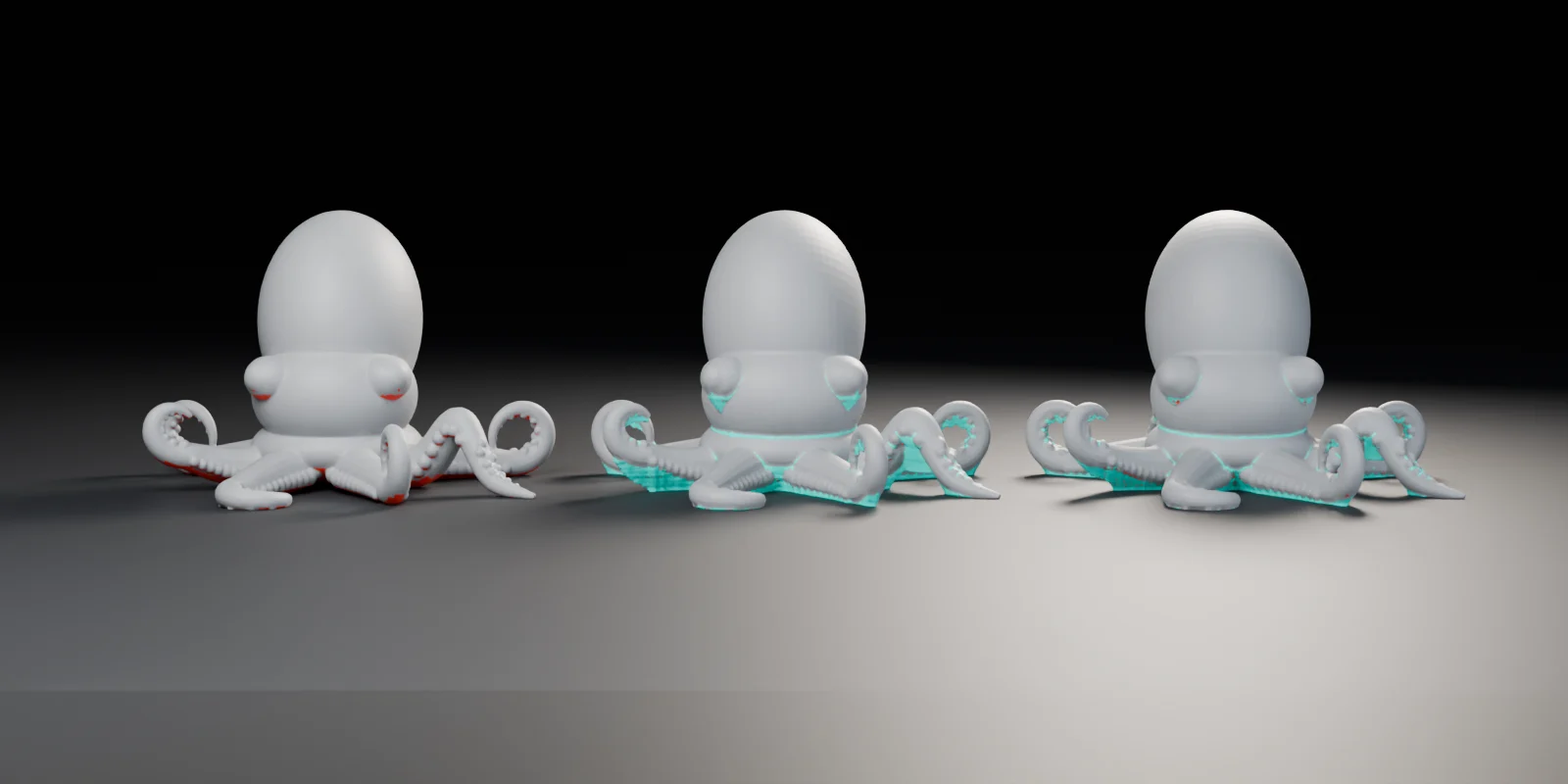
Left: the original with every face past 45° in red. Middle: OverHeal at the default 35°. Right: 45°, which keeps more of the original shape and leaves a few small overhangs for printers that can bridge them.

Original octopus with red overhangs, OverHeal at 35 degrees and at 45 degrees with teal fill
Original: 4,752 mm² overhang35°: 59 mm² left, +4.5% volume45°: 187 mm² left, +3.3% volume

Full color

Your paint job comes along

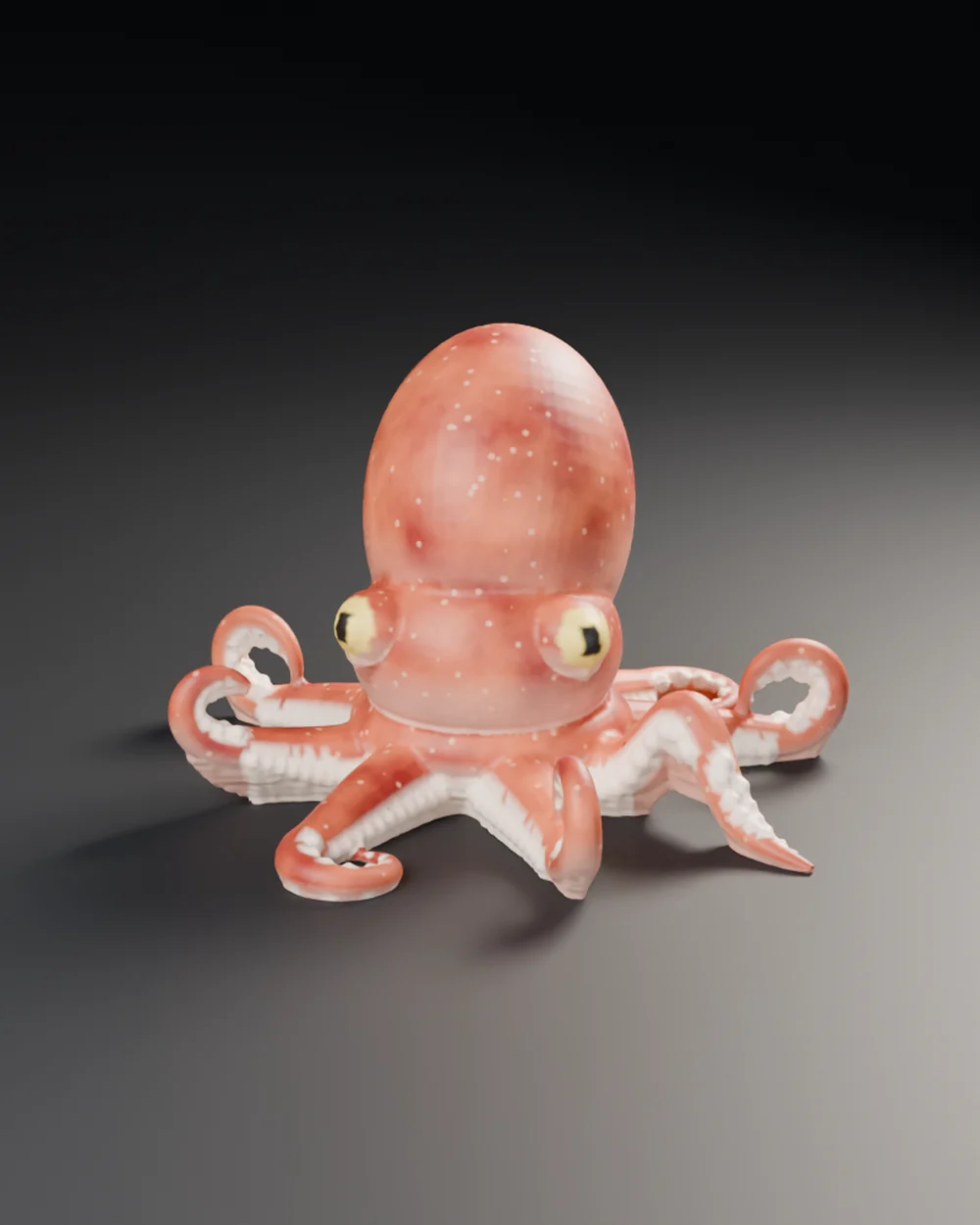
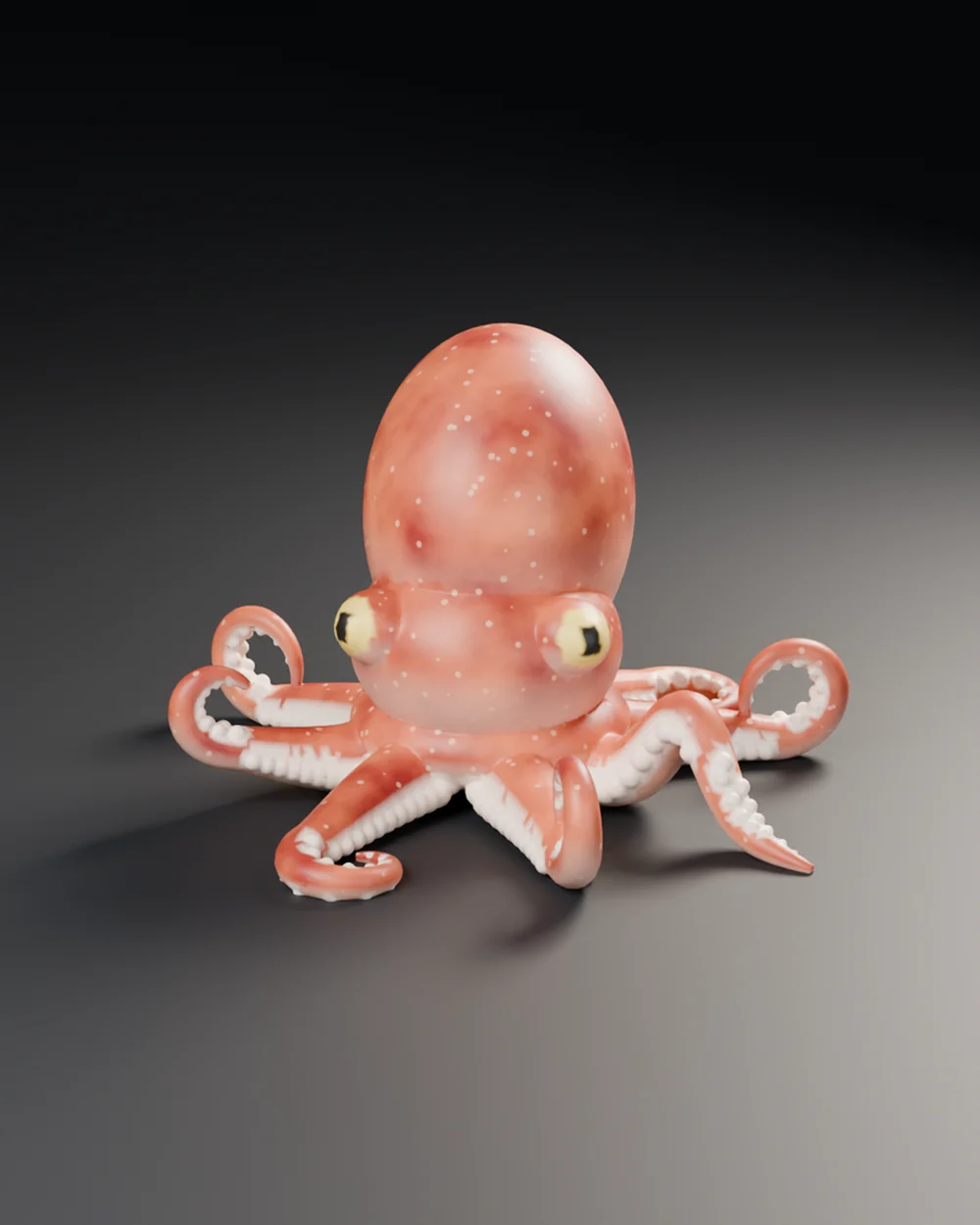
For color printers, OverHeal builds new UVs on the healed mesh and transfers your texture onto them. Each texel samples the closest original surface that faces the same way and is visible from outside, so buried shells and the inside of a mouth can't bleed through. Added fill takes its color from the neighboring surface, and UV seams are welded.

Shown: Full evaluation, with the texture baked onto new UVs.

OverHealed octopus with transferred full-color texture
Original textured octopus
Original OverHealed

Inspect it yourself

Orbit the before and after

Turn on the overhang overlay and drag the threshold. The red is computed live from each face's normal, the same test a slicer and the Toolbox use.

Loading models…

Web preview meshes are reduced for fast loading. The add-on's Full result for this octopus has 620,267 faces and its own 2560 px texture.

Workflow

One button, then a report you can act on

  1. 01

    Stand it on −Z

    OverHeal treats −Z as the print bed. If the flattest side of your model faces elsewhere, it asks before running.

  2. 02

    Run OverHeal

    Select the object, open the OverHeal tab in the sidebar (N) or the Object menu, and click Run OverHeal - Heal My Model.

  3. 03

    Pick an evaluation

    Draft to preview in seconds, Full for the print. The dialog shows the voxel size and count before you commit.

  4. 04

    Export and slice

    A new _OverHeal object appears next to your hidden original. Export it with the bundled Export This Object.

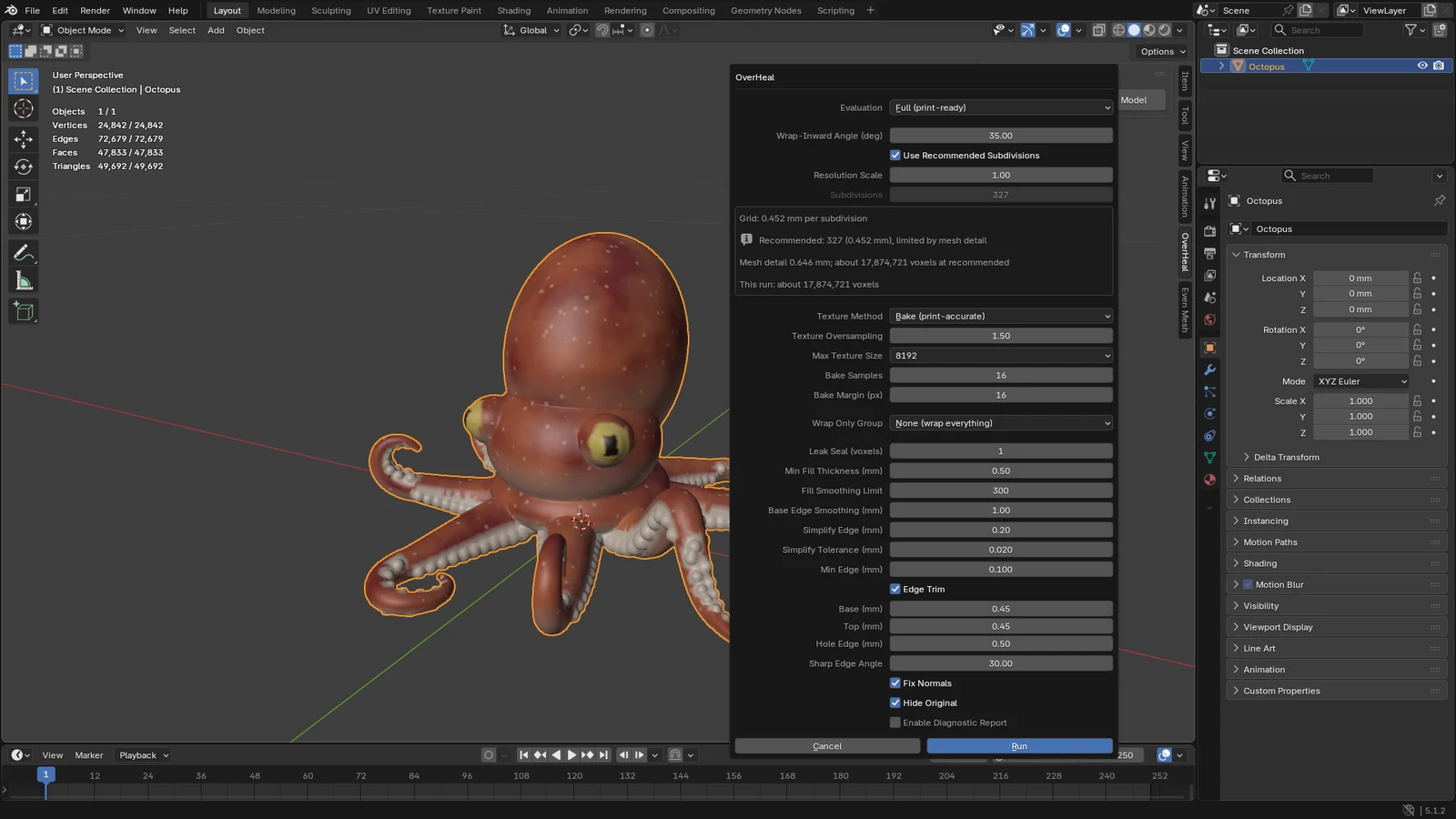
OverHeal settings dialog in Blender 5.1
The settings dialog in Blender 5.1. Evaluation presets set resolution, texture method and smoothing in one click.

For the detail-minded

Every setting, explained

Defaults are tuned for figurines and decorative prints around 50 to 200 mm. Hover or tap a group.

Evaluation Full · Balanced · Draft · Mesh only
Full (print-ready)
Recommended resolution, print-accurate bake up to 8K.
Balanced
75% resolution, 4K bake with fewer samples.
Draft (fast preview)
50% resolution, fast UV transfer instead of baking.
Mesh Heal w/out Texture Transfer
Full resolution geometry with no UVs or texture, for single-color prints.
Wrap and resolution 35° · auto voxels
Wrap-Inward Angle
Steepest allowed fill wall, measured from vertical. 0° fills straight down. Default 35°.
Use Recommended Subdivisions
Picks the voxel size from your mesh's own detail, so fine sculpts get a fine grid.
Resolution Scale
Multiplier on the recommendation, 0.25 to 2.0.
Leak Seal
Seals small openings so air pockets don't leak into the solid. Default 1 voxel.
Wrap Only Group
Restrict wrapping to one vertex group and leave everything else exactly as is.
Texture Bake · Transfer · None
Texture Method
Bake (print-accurate), Transfer (fast) or None.
Texture Oversampling
Texels per voxel face. Raise it for crisper small painted details.
Max Texture Size
Upper limit for the new texture, up to 8192 px.
Bake Samples / Bake Margin
Bake quality and padding around UV islands.
Fill quality 0.5 mm · 300 passes
Min Fill Thickness
Closes gaps narrower than this and removes thinner free-standing fill. Default 0.5 mm.
Fill Smoothing Limit
Maximum volume-preserving smoothing passes on the added fill.
Base and edges 1.0 · 0.45 · 0.5 mm
Base Edge Smoothing
Smooths the outline and wall within this height of the bed. Default 1 mm.
Edge Trim
Bevels the base (0.45 mm), top (0.45 mm) and through-hole edges (0.5 mm) of walls, with a Sharp Edge Angle of 30°.
Simplify 0.2 · 0.02 · 0.1 mm
Simplify Edge
Target edge length on flat areas. Default 0.2 mm.
Simplify Tolerance
The surface may move at most this far from the full-detail result. Default 0.02 mm.
Min Edge
Softens edges shorter than this where it won't pinch or tip a face. Default 0.1 mm.
Safety on by default
Fix Normals
Turns inside-out patches the right way on a working copy.
Hide Original
Hides, never deletes, your source object after the run.
Enable Diagnostic Report
Off by default. Writes a support report with reproducible geometry if you need help.

Included free

Two add-ons that make the round trip easier

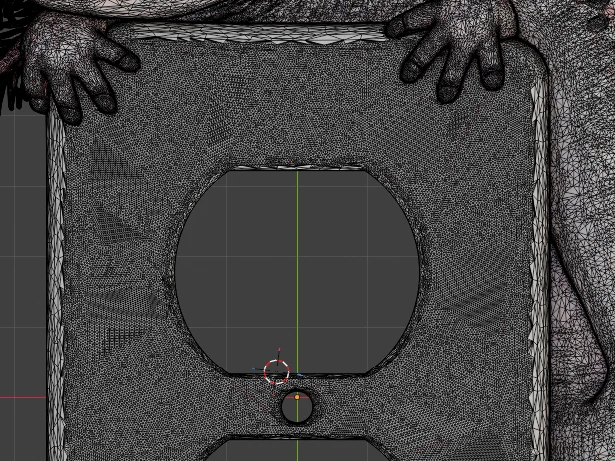
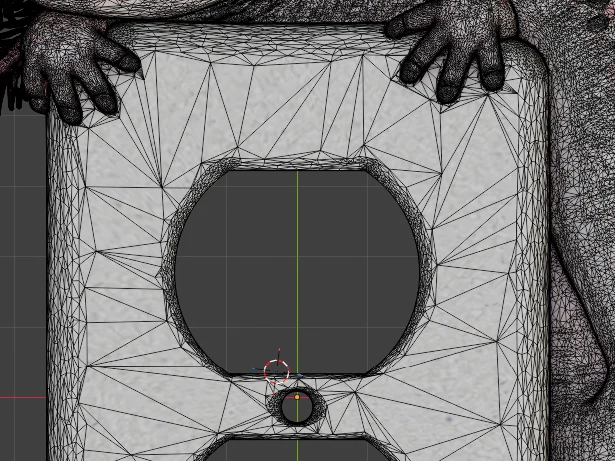
The axolotl cover plate after Even Mesh: an even, dense mesh
The axolotl cover plate before Even Mesh: long sliver triangles
Before After Even Mesh

Even Mesh 1.0.0

Long sliver triangles from CAD and STL exports ruin displacement and sculpting. In Edit Mode, right-click and Even Mesh is right below Subdivide. It refines and coarsens a region toward one target edge length, on selected faces, a vertex group or the whole mesh.

  • Subdivide Evenly, Unsubdivide Evenly or Even Out (Both)
  • Measure, Use Median and Match Fine pick a target from the mesh itself
  • Sharp edges are never moved or collapsed, only flat areas are relaxed, and Max Deviation limits how far the surface can move

Above: the flat plate of the axolotl cover, same view, before (long slivers) and after Even Mesh. Drag to compare.
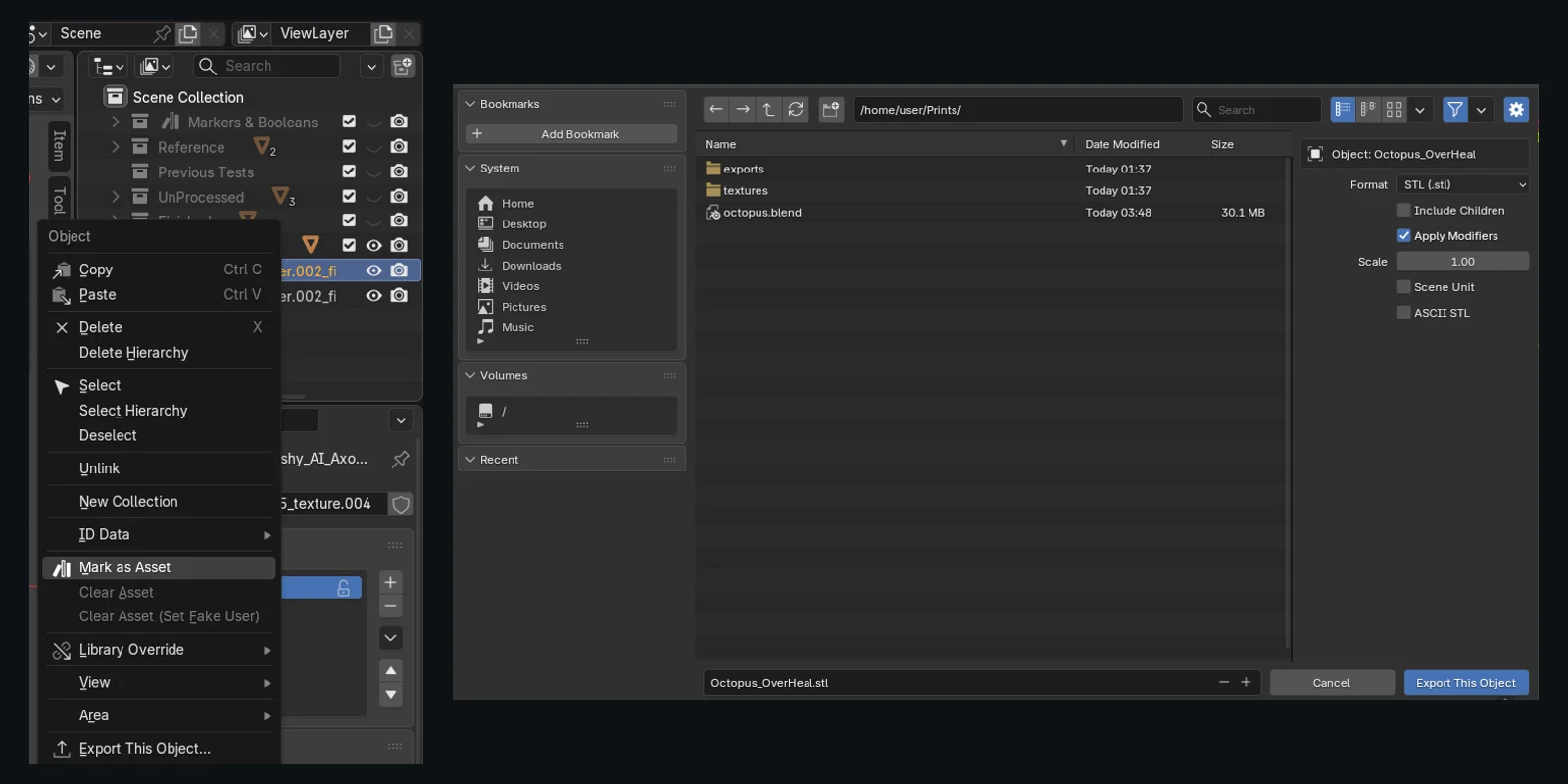
Export This Object in the Outliner right-click menu, and its export dialog

Export This Object 1.1.1

Right-click any object in the Outliner or the viewport and export just that object. No more deleting the rest of the scene, exporting, and hoping Undo brings it all back.

  • STL, OBJ, PLY, GLB, FBX or a standalone .blend
  • Optional children, export-only modifiers, scale, Scene Unit and ASCII STL
  • Selection and visibility are restored, even if the export fails

Install

One zip. Drag it onto Blender.

Works the same as any modern Blender extension. Nothing to unzip, no Python packages to fetch.

  1. 1
    Download OverHeal-1.0.24.zip from your Superhive library.
  2. 2
    Drag the zip onto an open Blender window, or use Edit › Preferences › Get Extensions › Install from Disk.
  3. 3
    Done. The OverHeal tab appears in the 3D Viewport sidebar (N). The single zip contains compiled builds for Windows, Apple Silicon Macs and Linux, for every supported Blender version; it picks the right one by itself. Intel Macs are not supported in this release.
  4. 4
    Optional: install even_mesh-1.0.0.zip and export_this_object-1.1.1.zip the same way.

FAQ

Straight answers

Will it change my original object?

No. OverHeal works on a copy and writes a new object named <name>_OverHeal. The original is hidden, not modified or deleted.

Does it remove every overhang?

It removes the ones that matter. On the octopus test, overhang area past 45° fell from 4,752 mm² to 59 mm², and every remaining face was smaller than one voxel face. OverHeal lists what is left by height and size and puts those faces in the OverHeal_Overhangs vertex group so you can check them.

Will my details get blurred?

Areas that were already printable are snapped back onto your original surface, and simplification is held to 0.02 mm. Fill is only added below steep overhangs, so a recess directly under one (a belt under a belly, the gap under a chin) will be partly filled. Raise the wrap angle or use Wrap Only Group to keep more.

How long does a run take?

Run time depends on the mesh and on your hardware, so treat these as examples. On a 2-core cloud machine the 47,833-face demo octopus took 2 minutes 15 seconds at Draft and about 19 minutes at Full. On the developer's computer, detailed relief covers of about 705,000 faces (353,000 vertices) typically take 1 to 1.5 hours at Full. Draft is the quick way to check settings first. The progress overlay shows the current stage and a remaining-time estimate that learns from your earlier runs.

Does it need a texture?

No. Choose Mesh Heal w/out Texture Transfer for untextured or single-color prints. It still fills overhangs, makes the mesh manifold and trims edges.

What if something goes wrong?

Turn on Enable Diagnostic Report and run again. OverHeal writes a report with reproducible geometry that you can send through Superhive's support messages.

Stop sanding off support scars.

OverHeal, plus Even Mesh and Export This Object, in one Superhive download.

Get OverHeal on Superhive